


How to Edit Event Agenda Items
When using the Event Agenda feature, you can easily edit and update Event Agenda items to keep your event schedule accurate and up to date. You can modify existing agenda items, update times, titles, and locations, or make quick changes as your event evolves—ensuring your Social Wall always displays the latest information. When you make changes, they’ll be shown on the wall instantly without requiring a refresh of the social wall.
How To Edit Event Agenda Items
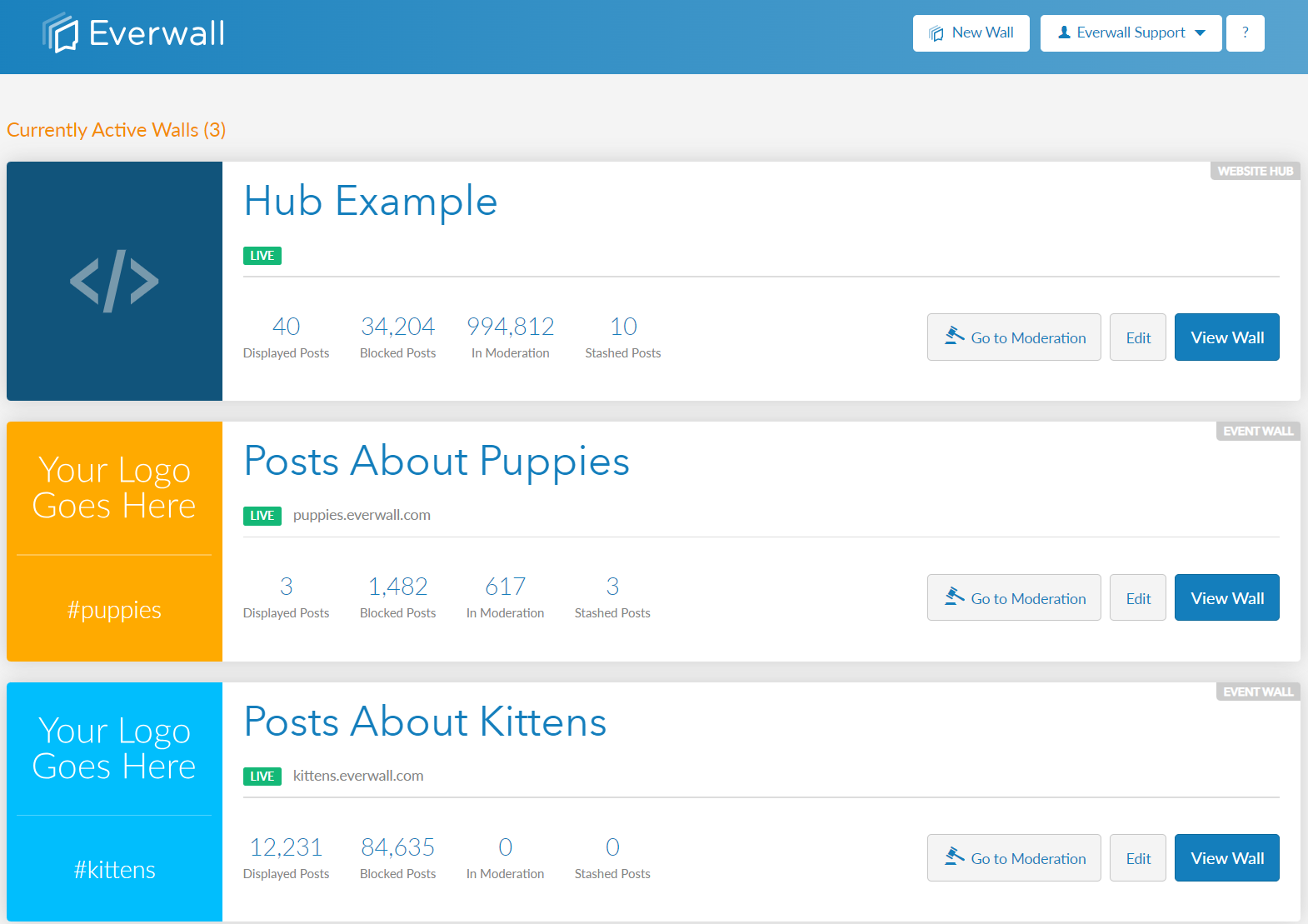
Step 1: Select the wall that has the agenda that you need to edit.
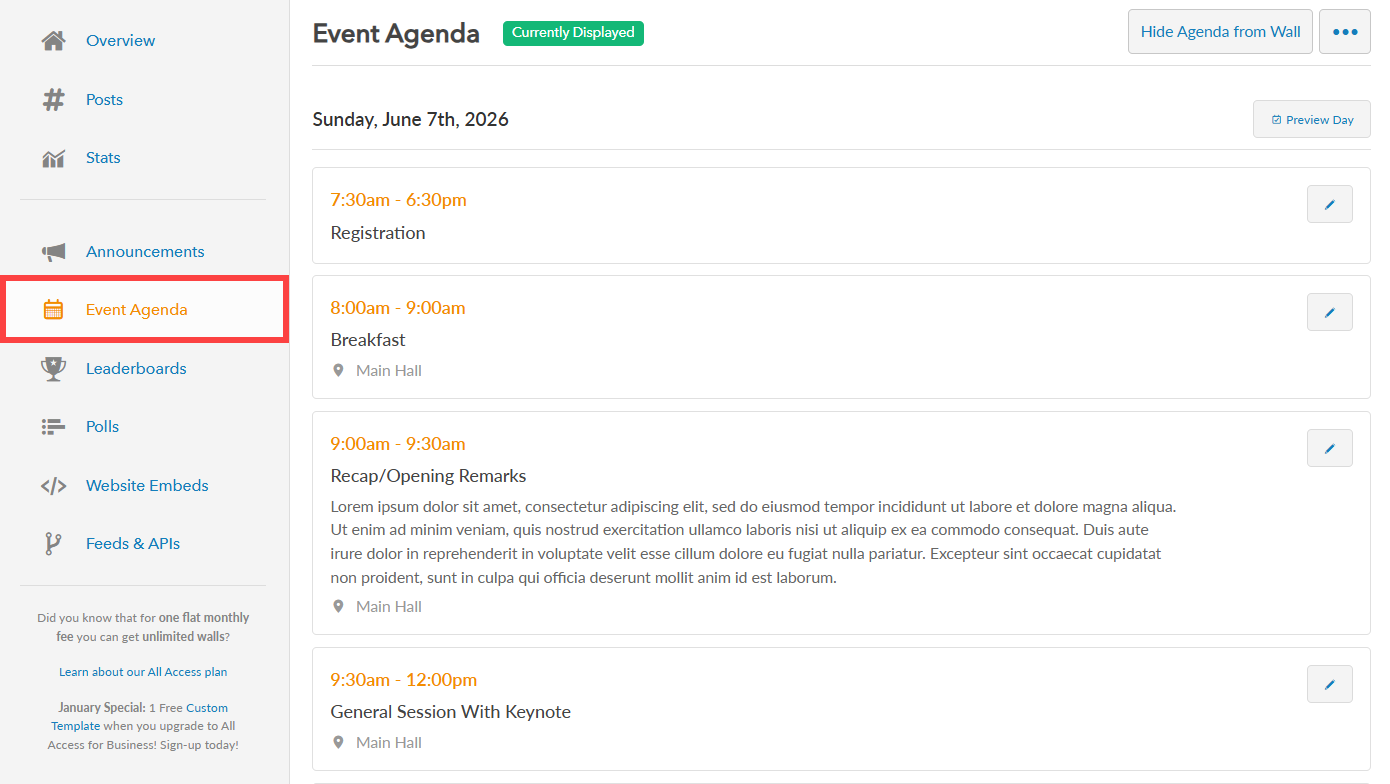
Step 2: In the side menu, click “Event Agenda” to view your existing event agenda.
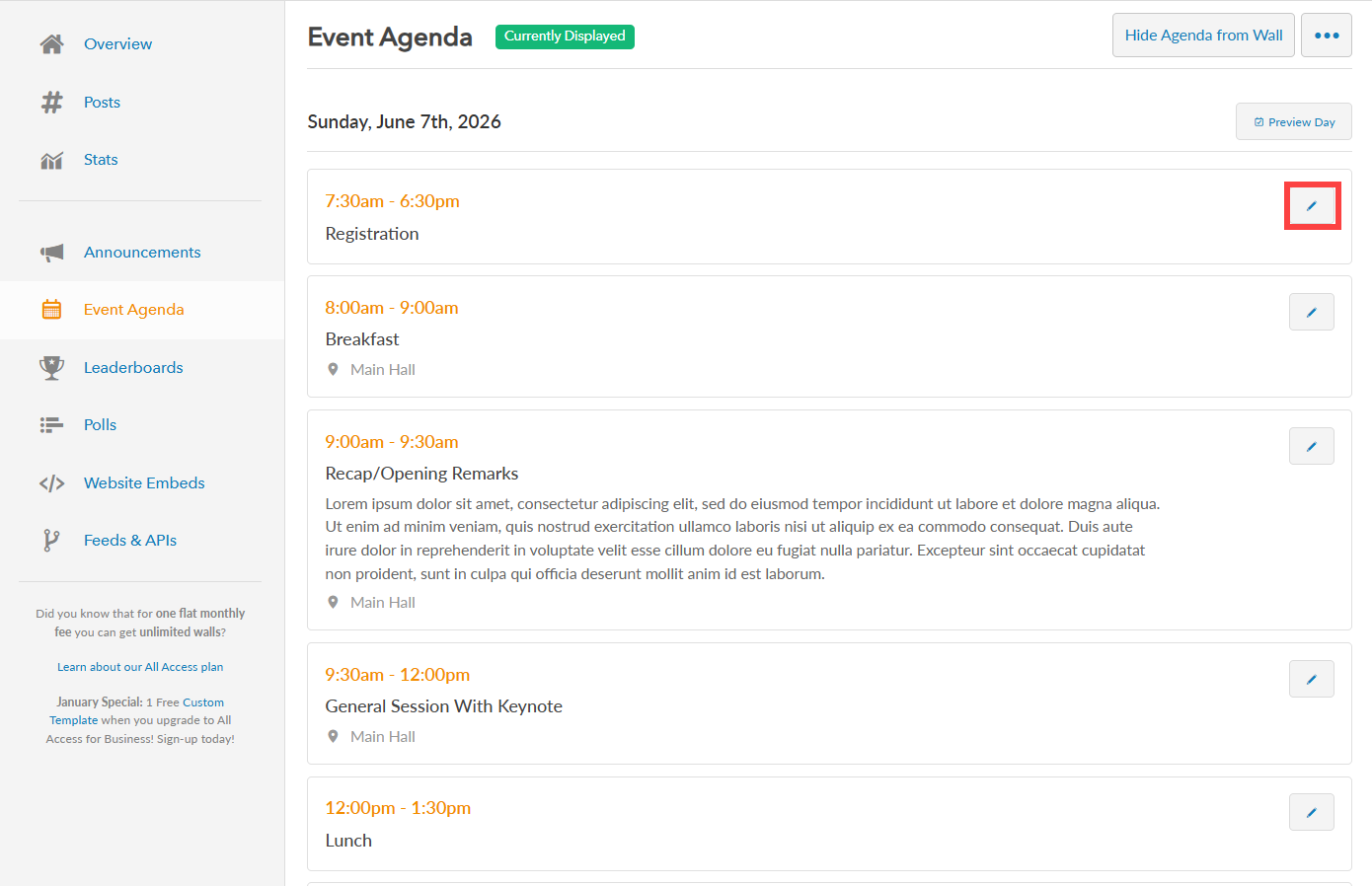
Step 3: Choose the specific item you want to edit, then click the edit icon beside it.
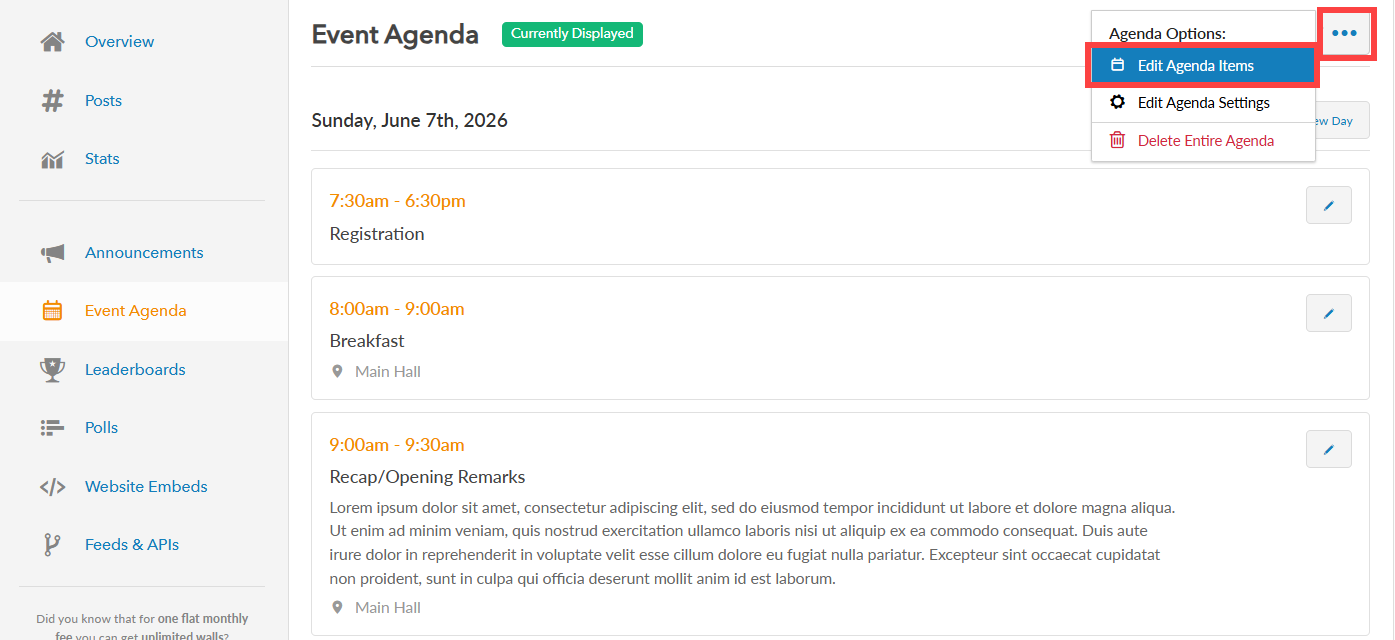
You can also click the more button (represented by three dots) to view more options and select “Edit Agenda Items” option.
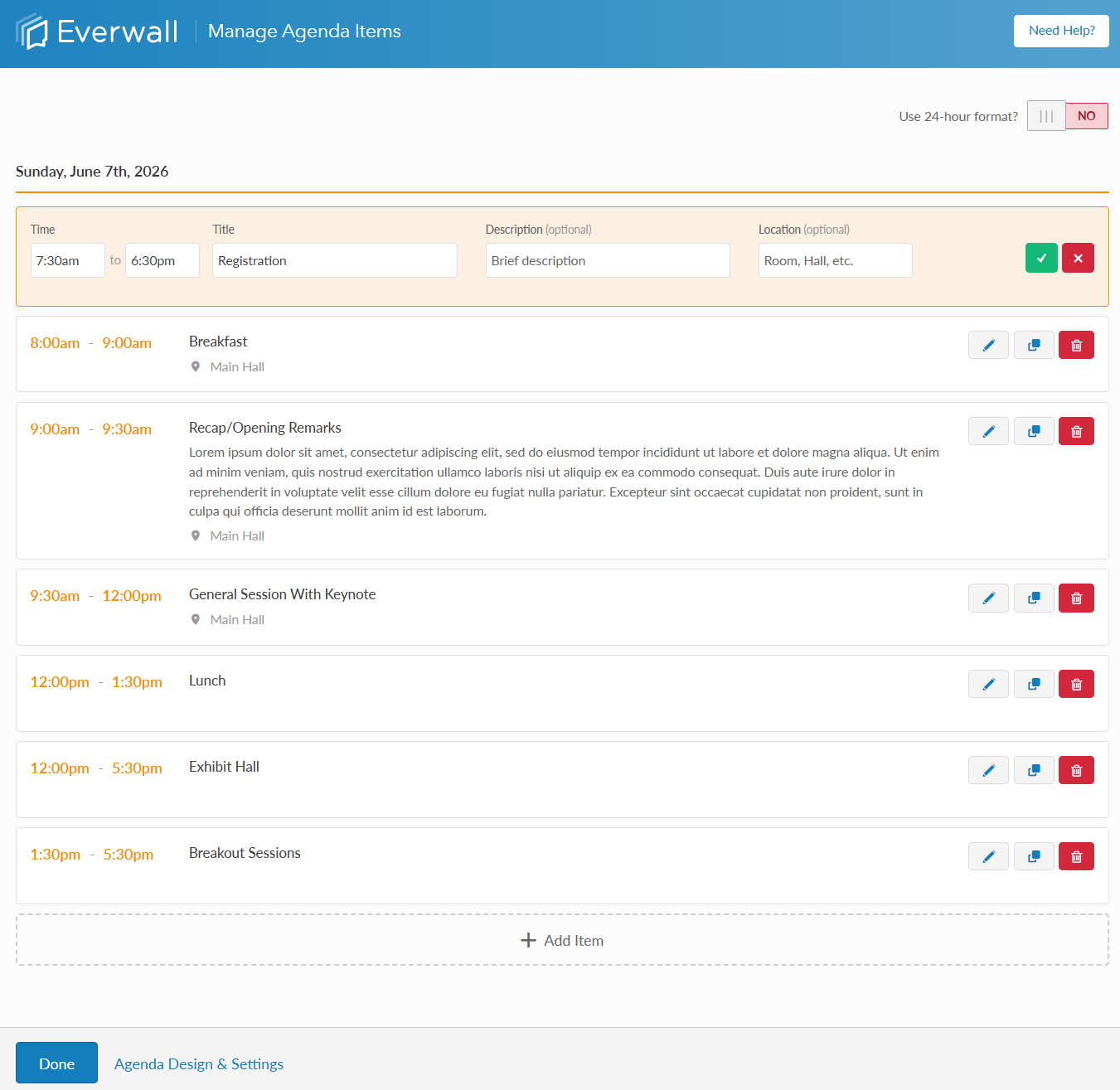
Step 4: You will be directed to the Manage Agenda Items page where you can update the agenda item’s details, which includes the Start/Stop Time, Title, Description (if enabled under the Agenda Item Visibility Options section), and Location (if enabled under the Agenda Item Visibility Options section). Once you are done making your changes, click the green button with a check mark.
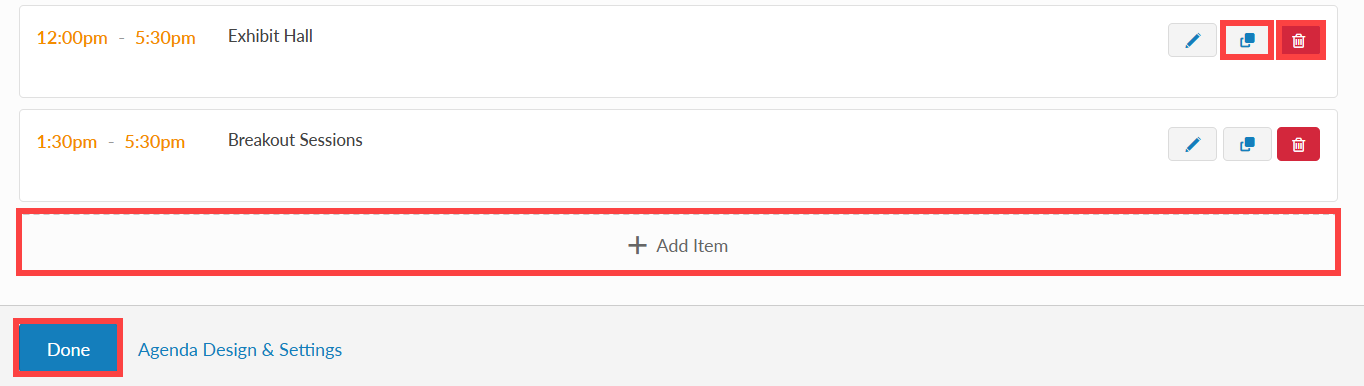
Step 5: You can also add a new agenda item, duplicate an existing agenda item, or delete an agenda item from this page. After you are done updating your agenda items, click the “Done” button to go back to agenda overview page.
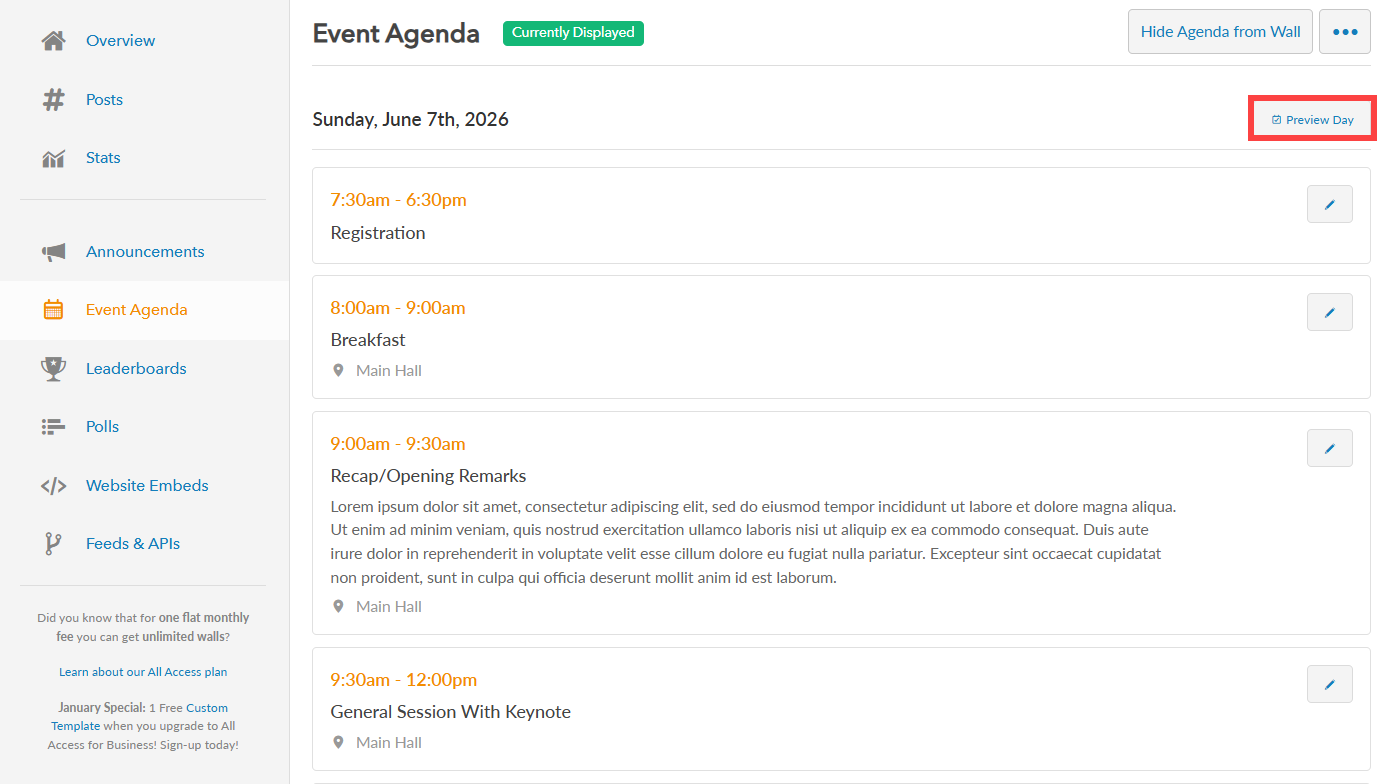
Step 6: If you want to see a preview of what the agenda will look like for a specific day, you can click the “Preview Day” button on the Event Agenda page next to the date. Without clicking that button for a specific day, if you clicked the button to display the agenda and then opened the social wall, the agenda would just say that there are no events for the day (unless you’re editing this on one of your actual event days).
When you use that button to preview the agenda, we force the social wall to display the agenda as if it were that specific day, and by default, the time of the very first agenda item for the day. You can change the &agenda_time=07:30 variable in the URL to be other times to see how the agenda changes throughout the day, if you wish. If there is no “am” or “pm” on the timestamp, we’ll assume it’s in 24-hour format. You can use 12-hour formatting if you want, e.g. &agenda_time=02:00pm
Still have questions? Get in touch.