


How to Update Your Agenda’s Design & Display Settings
Last updated on January 29th, 2026
Agendas
You can edit your event’s agenda design and settings to customize how your agenda appears on your event’s social wall. By adjusting the fonts, colors, layout, and other visual options you can can make the agenda blend in with your event and how you’ve designed the social wall.
How To Update Your Agenda Design Settings
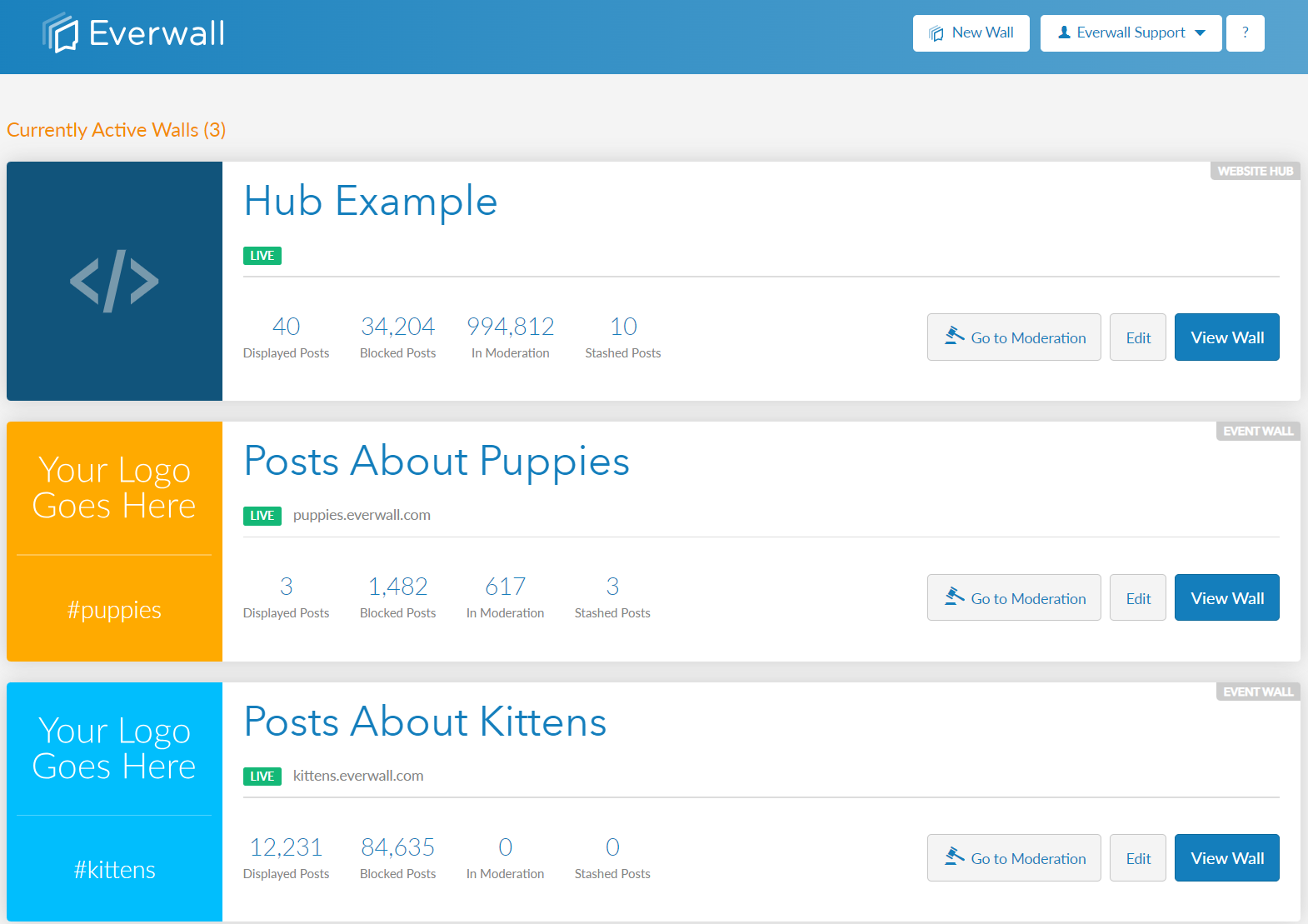
Step 1: Select the event social wall you want to edit or update your event agenda design settings.
Note: Agenda’s are only available for Event Social Walls and Ongoing Social Walls (Digital Signage). They cannot be used with Social Media Hubs.
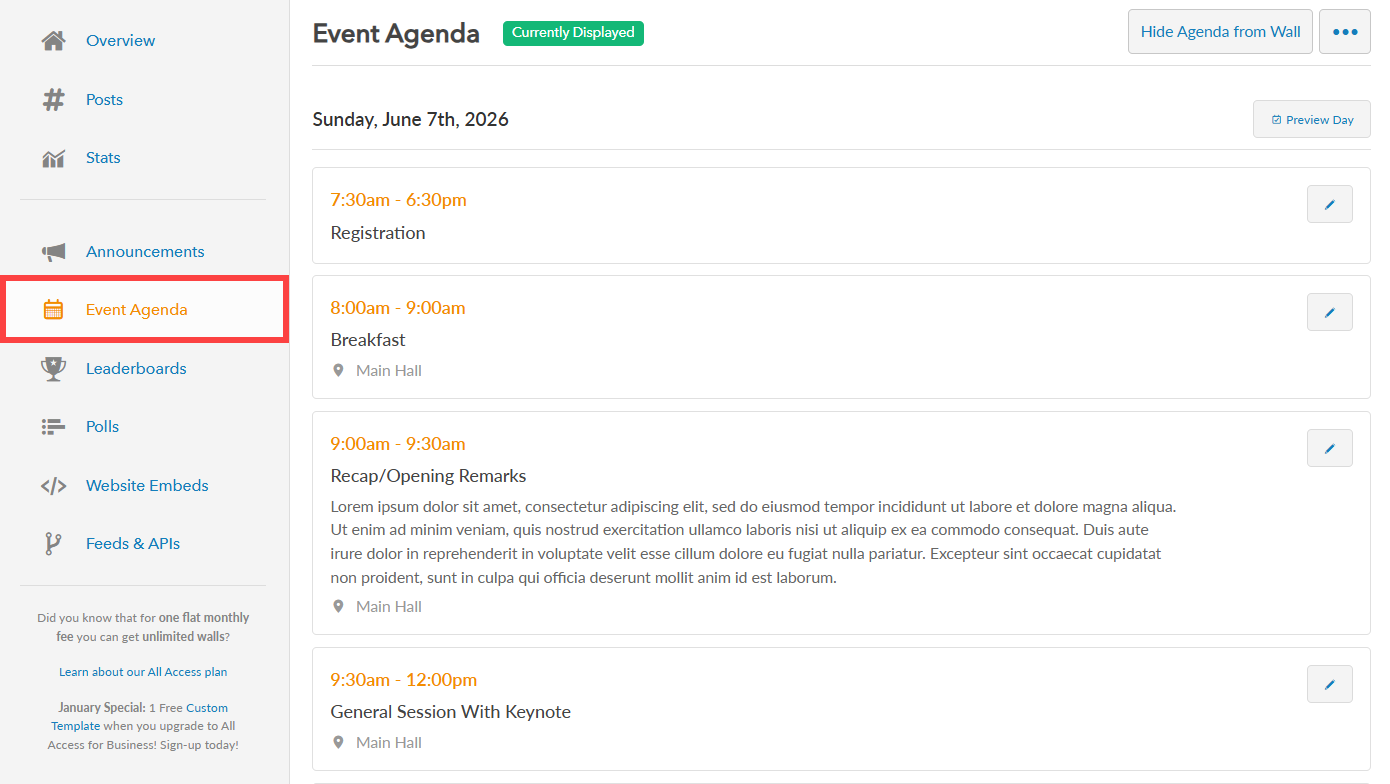
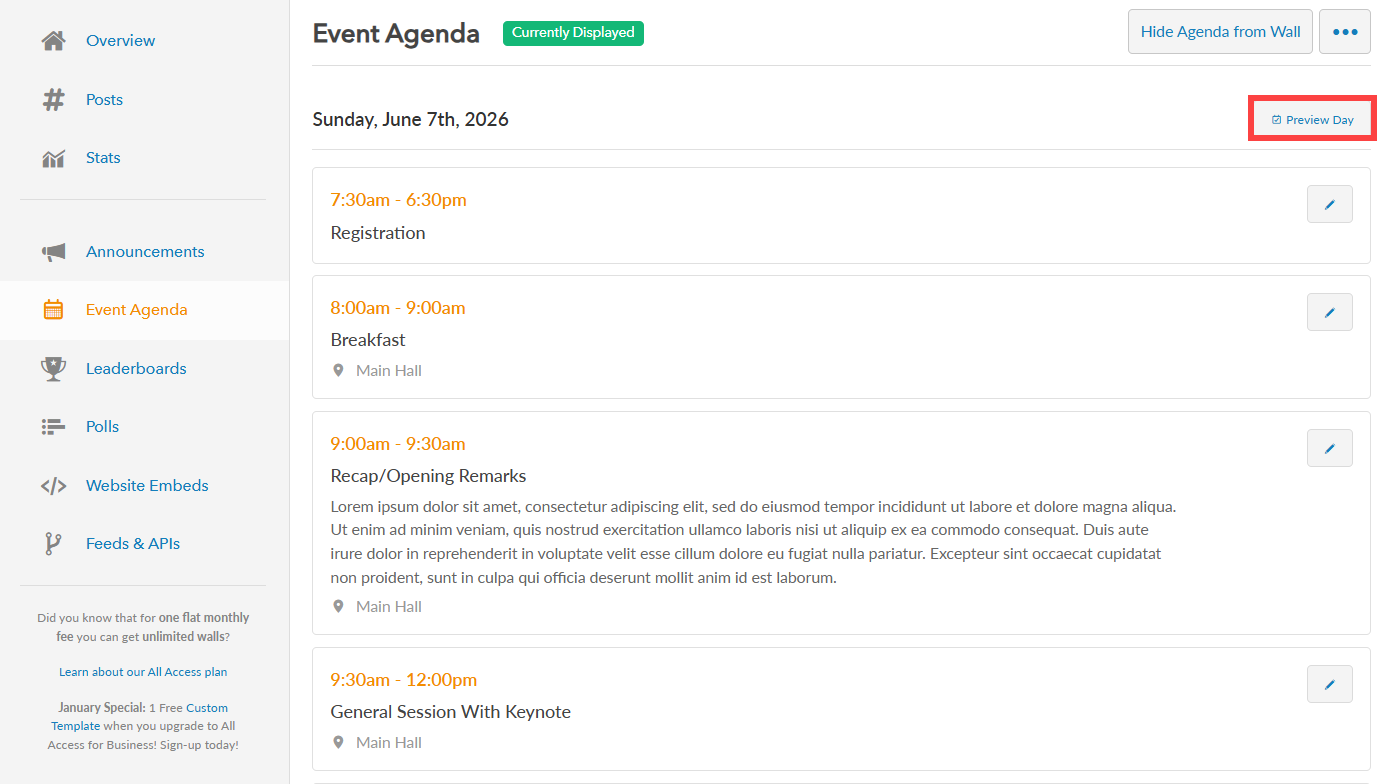
Step 2: In the side menu, click “Event Agenda” to view your existing event agenda.
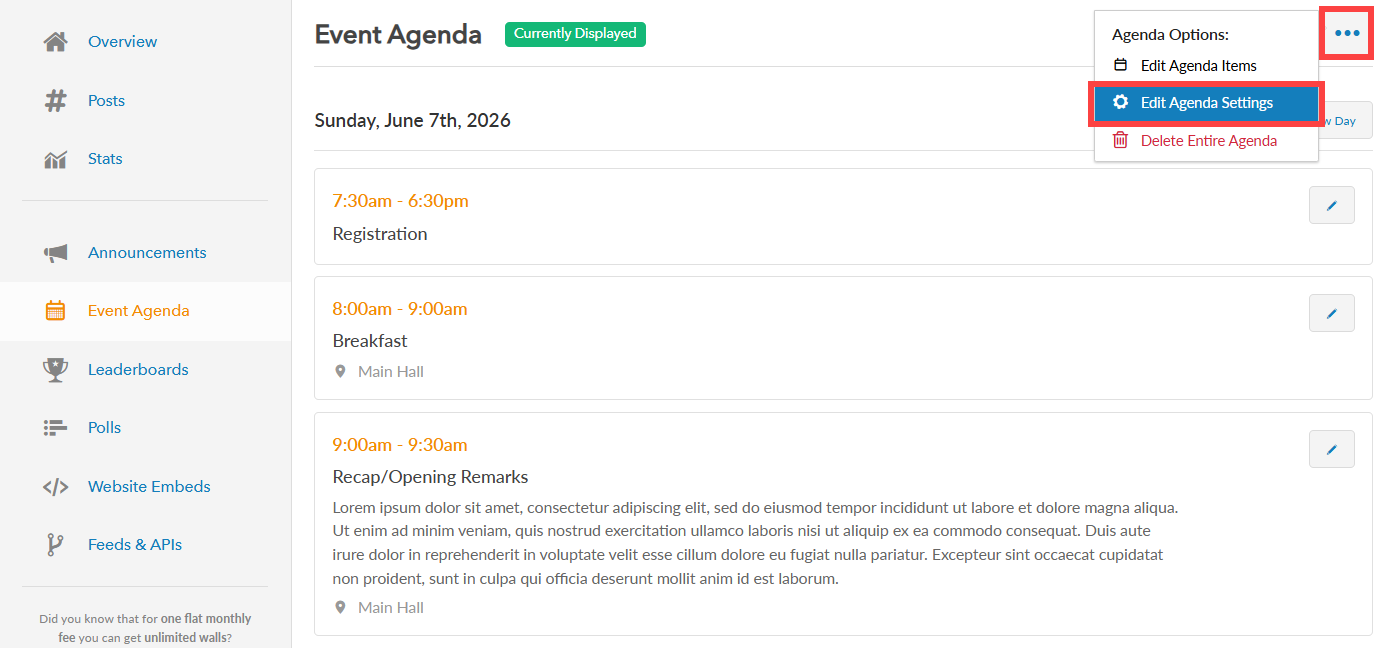
Step 3: Click the “more” button (represented by three dots) to view more options and select the “Edit Agenda Settings” option.
Step 4: You will now be directed to the Agenda Settings & Design page edit/update the settings and appearance of your existing Event Agenda. You can also view this tutorial to learn more about how to create the Event Agenda from scratch if you haven’t already created one.
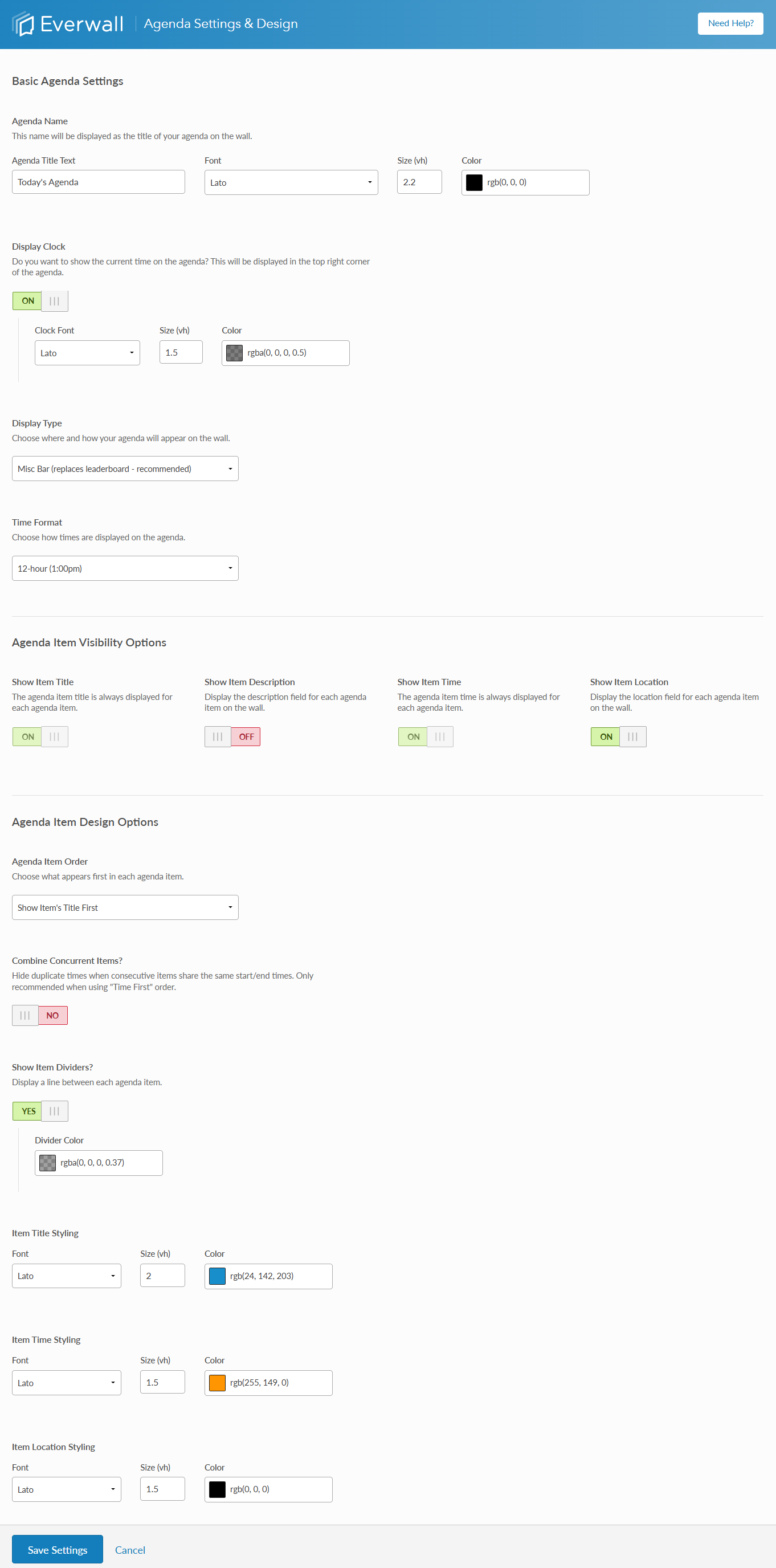
Step 5: After updating the design settings of your event agenda, click the “Save Settings” button to save the changes.
If you want to see a preview of what the agenda will look like for a specific day, you can click the “Preview Day” button on the Event Agenda page next to the date. Without clicking that button for a specific day, the agenda would just say that there are no events for the day (unless you’re editing this on one of your actual event days).
When you use that button to preview the agenda, we force the social wall to display the agenda as if it were that specific day, and by default, the time of the very first agenda item for the day. You can change the &agenda_time=07:30 variable in the URL to be other times to see how the agenda changes throughout the day, if you wish. If there is no “am” or “pm” on the timestamp, we’ll assume it’s in 24-hour format. You can use 12-hour formatting if you want, e.g. &agenda_time=02:00pm
Still have questions? Get in touch.