


How to Delete An Agenda Item
If you need to remove an agenda item due to a schedule change or any other reason, you can remove just that item without affecting the rest of your Event Agenda.
You also have the ability to remove the entire agenda, however, this tutorial only goes over removing a single item.
When you are done with this tutorial, all other agenda items and design settings will remain unchanged on your social wall.
How To Delete An Agenda Item
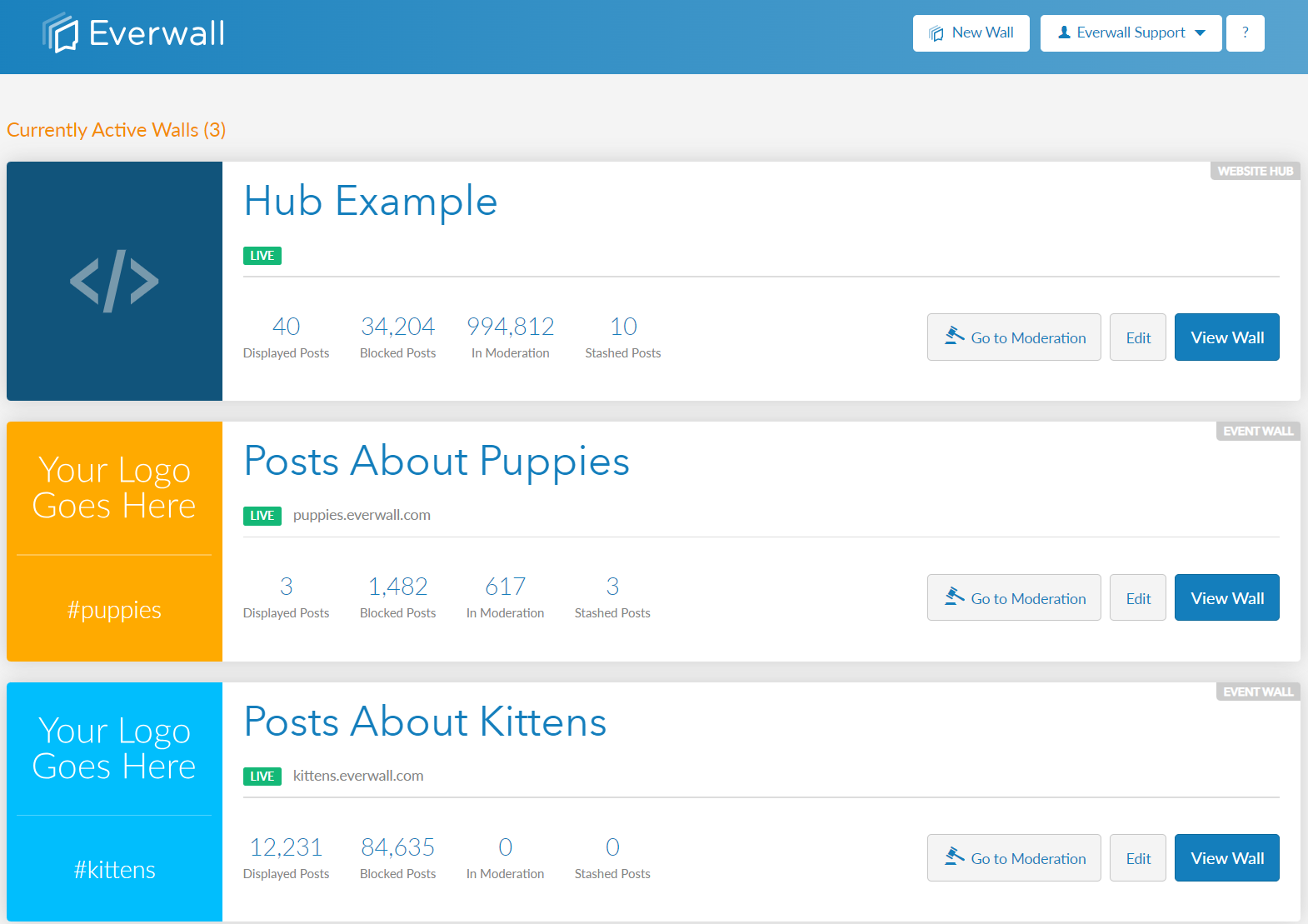
Step 1: Select the wall that you need modify the event agenda for.
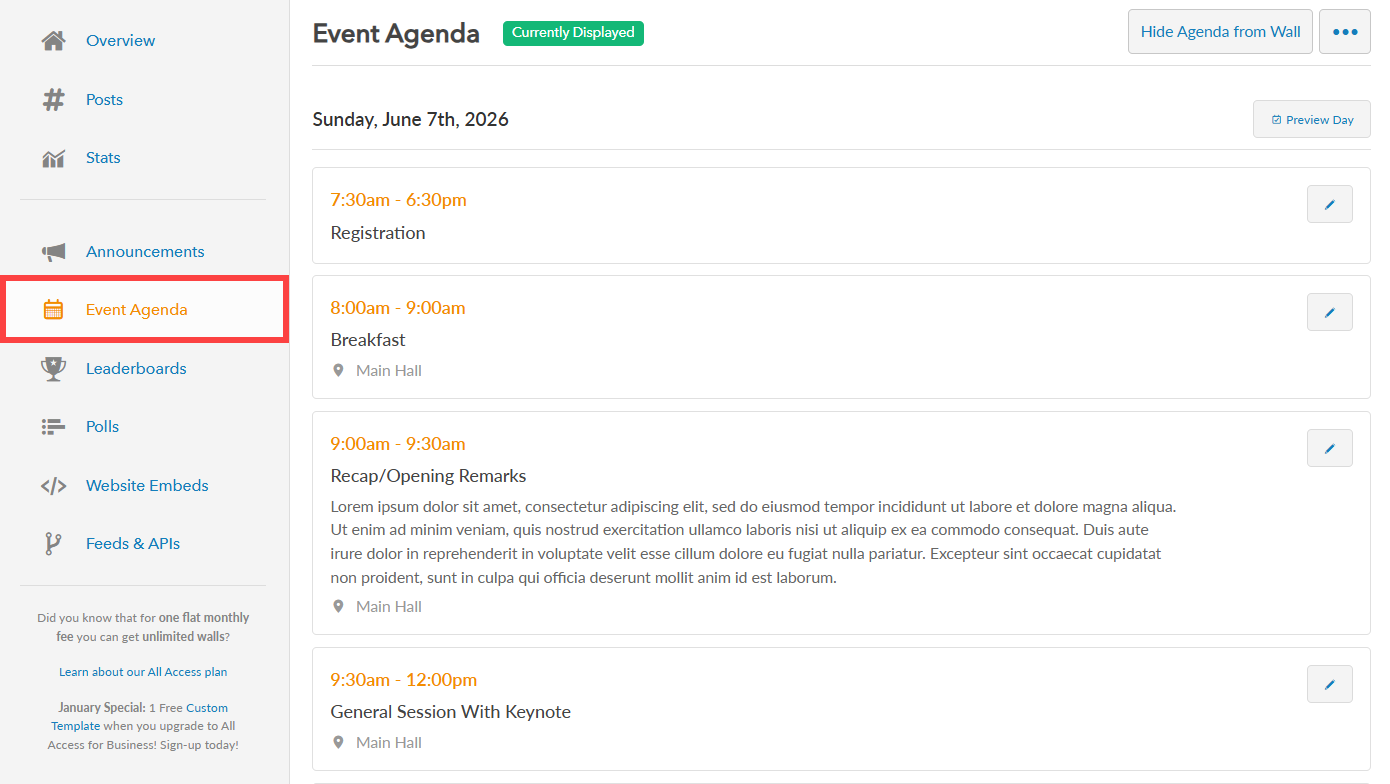
Step 2: In the side menu, click “Event Agenda” to view your existing event agenda and its agenda items.
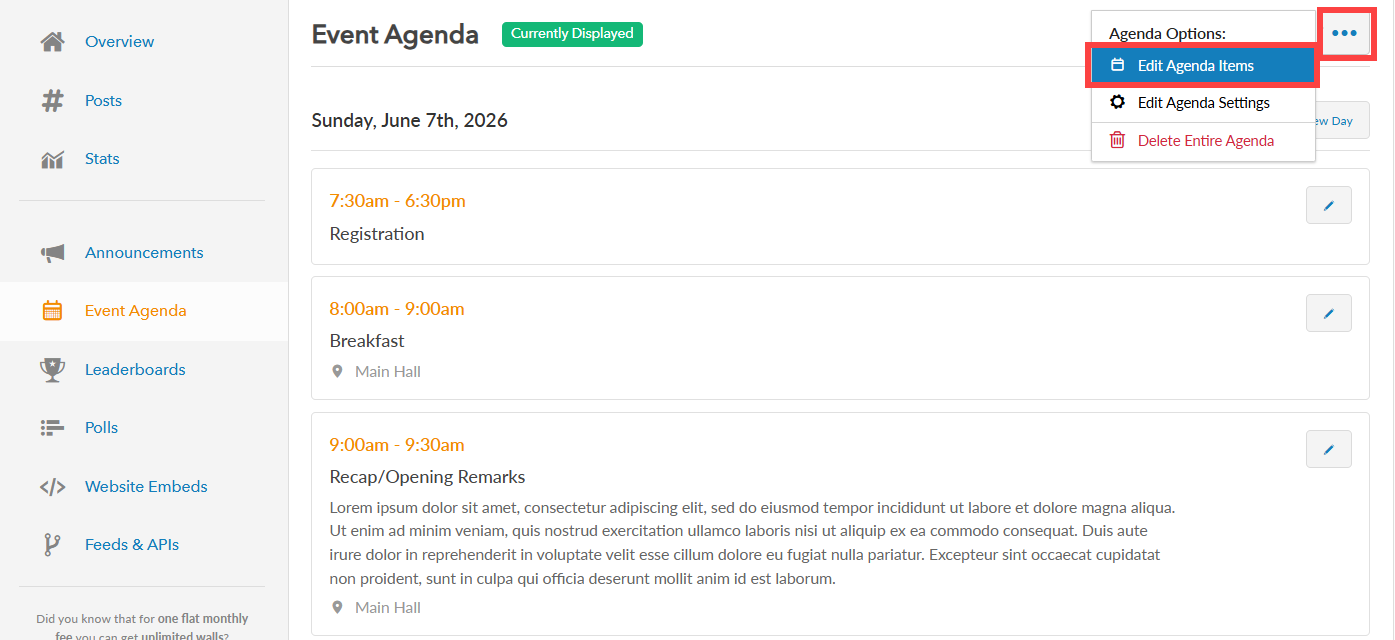
Step 3: To delete an Agenda item, you can click more button (represented by three dots) to view more options and select “Edit Agenda Items” option.
Note: You can technically click the edit button next to the item from this page, but when you do that, you’d then have to cancel out of editing to be able to access the delete button. So we recommend you start from the Edit Agenda Items page that you access from the More button.
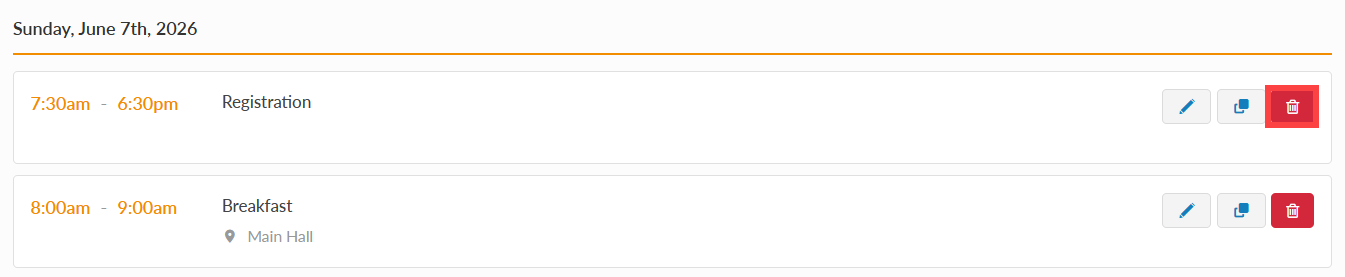
Step 4: Select the specific item/s you wish to delete then click the delete icon beside it.
Step 5: A confirmation message will appear asking if you want to delete the agenda item. Click “Yes” to remove the agenda item, or click “No” to cancel and keep it.
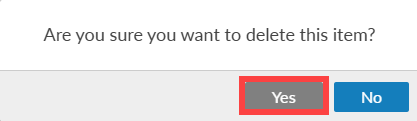
After clicking Yes, the agenda item will be deleted. If you are currently displaying the agenda on your social wall, it will be removed instantly. You will not need to reload the social wall.
Still have questions? Get in touch.