


How to Create an Event Agenda on your Social Wall
The Event Agenda feature in Everwall lets you organize and display your event’s schedule on the wall in a clear, easy-to-follow format. You can add agenda items with specific times, activity names, and locations, and display them on your social wall in real time.
When creating an Event Agenda, the builder first allows you to customize the settings and appearance of your agenda through the Agenda Settings and Design page. Once you’re done, you can add and manage the agenda items that will appear on your wall.
How to Create an Event Agenda
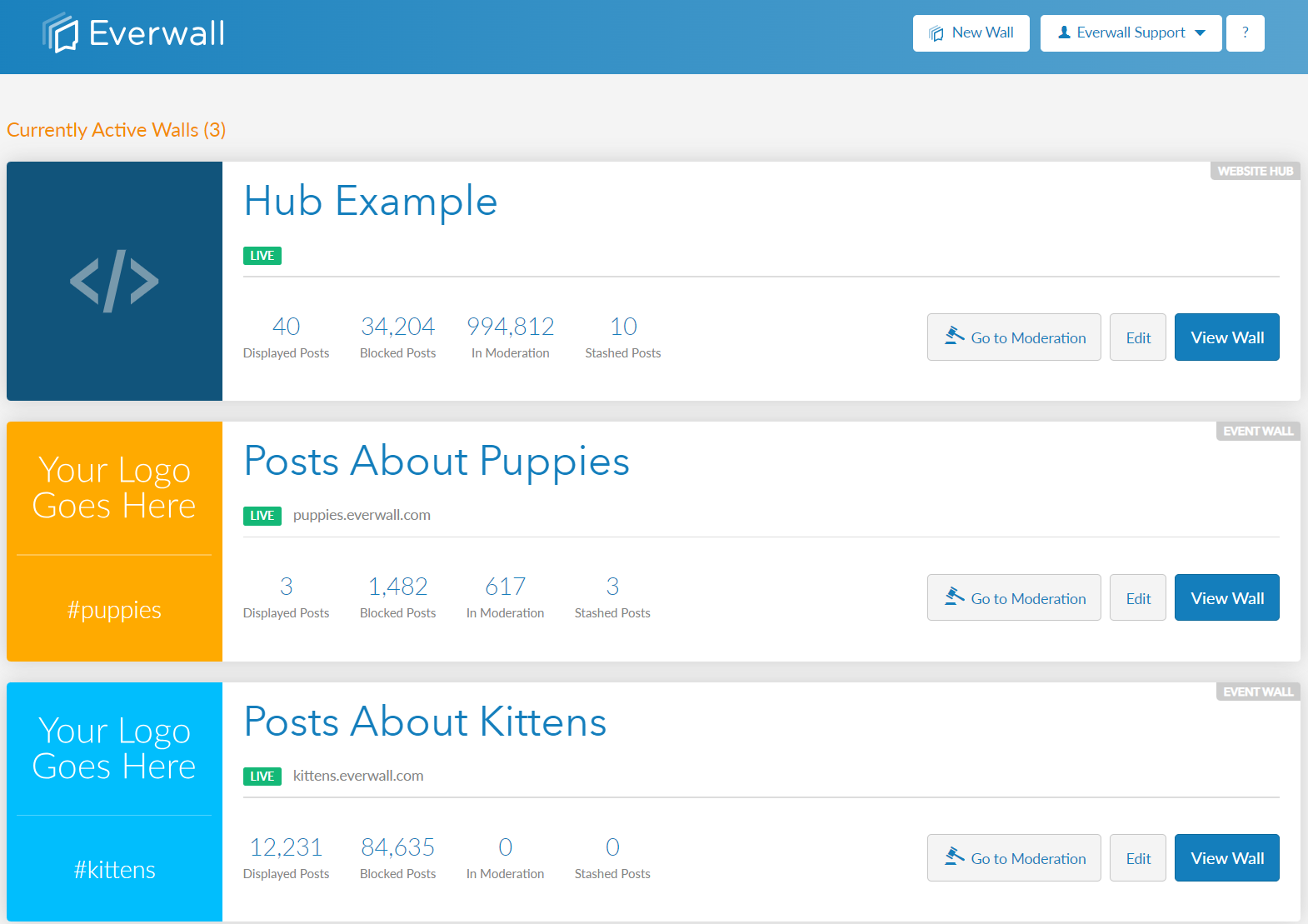
Step 1: Select the wall you want to add to or show your event agenda.
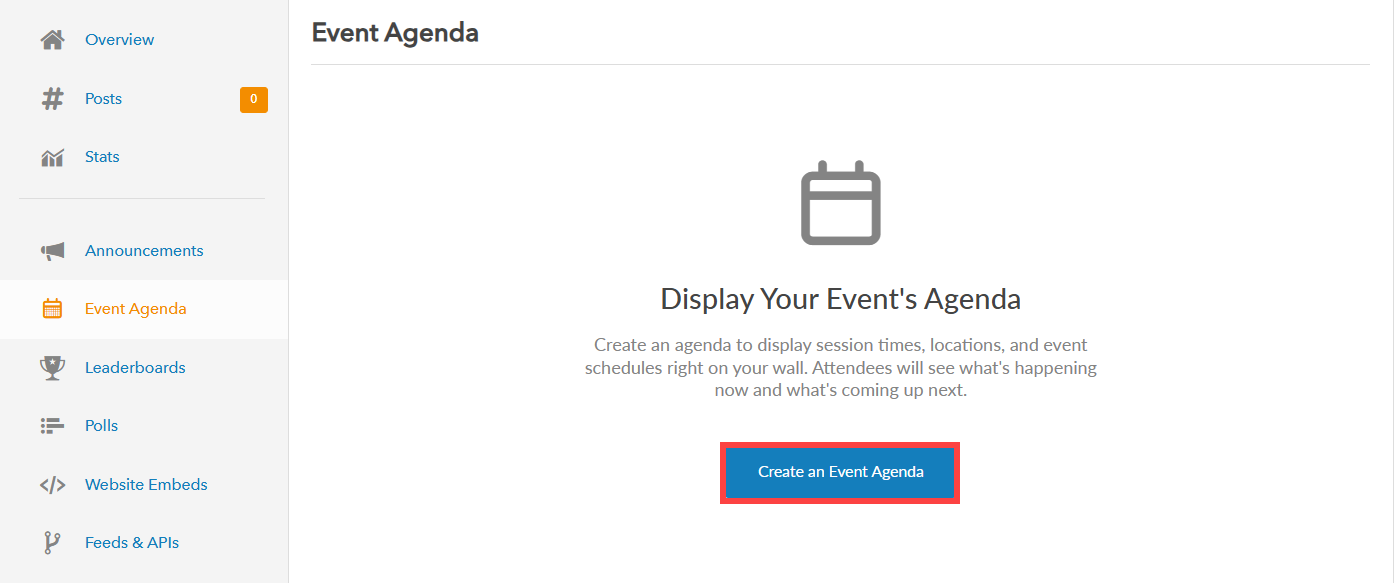
Step 2: In the side menu, click “Event Agenda” to view your existing event agenda. If you do not have an existing agenda, the “Create an Event Agenda” button will appear, allowing you to customize your event settings and design.
Step 3: You will be directed to the Agenda Settings and Design page, where you can edit the settings and appearance of your event agenda on the wall. This page is divided into three sections:
- Basic Agenda Settings
- Agenda Item Visibility Options
- Agenda Item Design Options
Basic Agenda Settings
This section includes options to set up the main details of your event agenda, such as the agenda title, font style and size, color, display clock, display type, and time format. These settings determine how your agenda will appear on the wall.
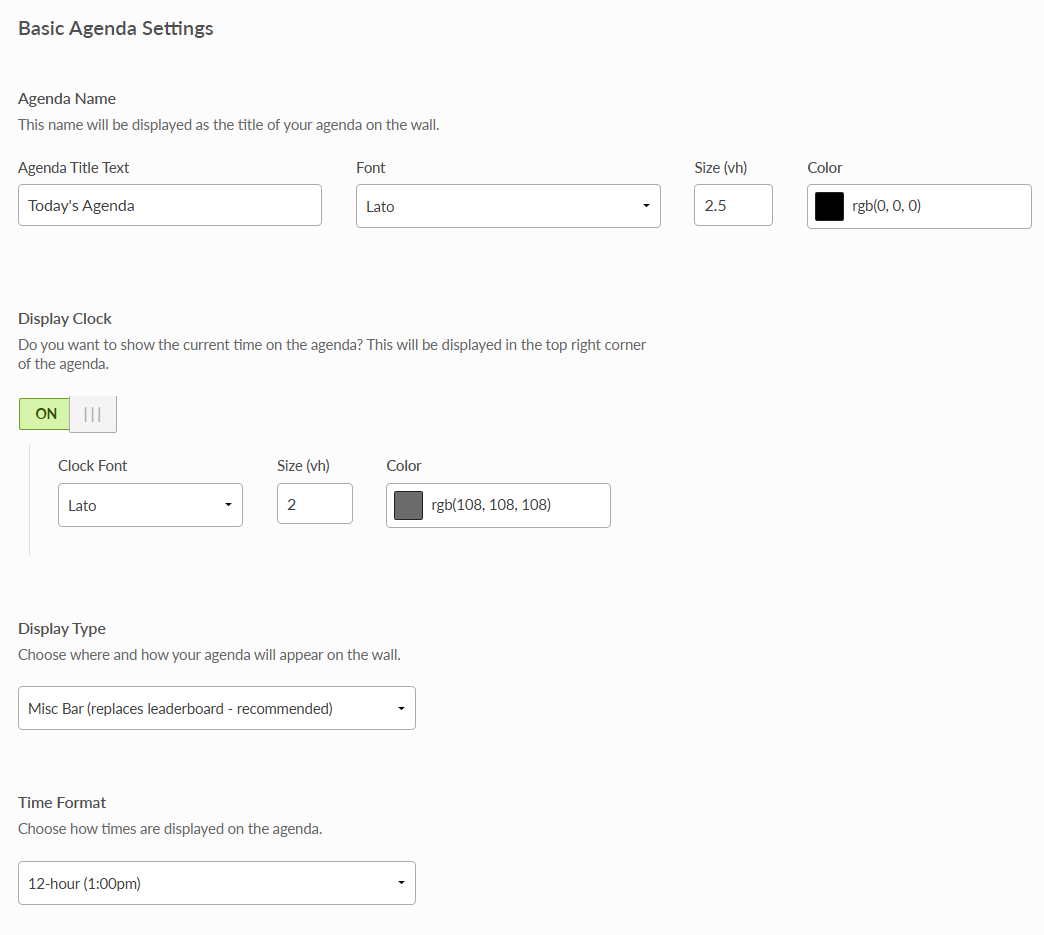
- Agenda Title Text: Enter the name that will be displayed as the title of your agenda on the wall
- Font: Choose the font you want the Title Text to be written in
- Size: Adjust the size of the Title Text
- Color: Select the color of the Title Text
- Display Clock: Toggle this option on if you want to show the current time on the agenda. The clock will appear in the top-right corner of the agenda. Once enabled, you’ll need to set the following options:
- Clock Font: Choose the font the time should be displayed in
- Size: Adjust the size of the time
- Color: Select the color of the time
- Display Type: Choose where and how your agenda will appear on the wall.
- Misc Bar (replaces leaderboard – recommended)
- Full Screen (Overlays everything)
- Time Format: Choose how times are displayed on the agenda.
- 12-hour (1:00 pm)
- 24-hour (13:00)
Agenda Item Visibility Options
This section allows you to manage which details of agenda items are visible on the wall and if the field is shown to you when editing items. The Item Title and the Item Time cannot be disabled, and are always shown on your agenda. You can toggle off the Item Description and the Item Location.
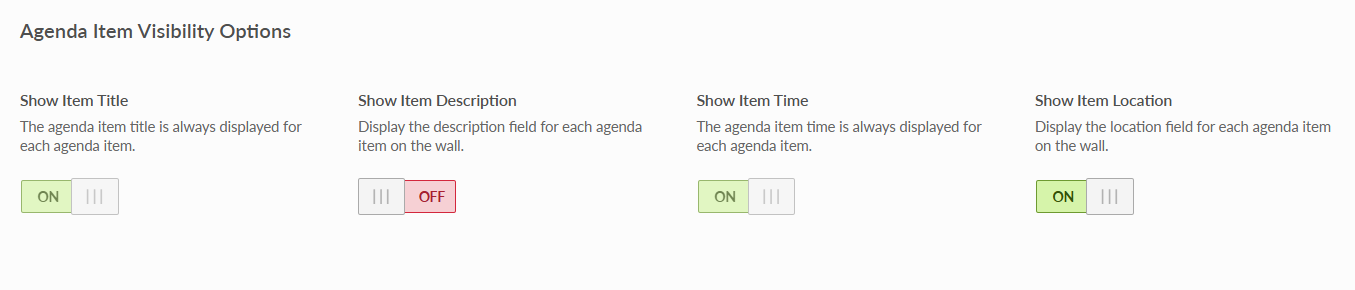
- Show Item Title: The agenda item title is always displayed for each agenda item.
- Show Item Description: Display the description field for each agenda item on the wall. If enabled, you can optionally enter a description for each agenda item.
- Show Item Time: The agenda item time is always displayed for each agenda item.
- Show Item Location: Display the location field for each agenda item on the wall. If enabled, you can optionally enter a location for each agenda item.
Agenda Item Design Options
This section allows you to customize the layout and appearance of agenda items, including how things are ordered, divider settings, and styling options for titles, times, and locations such as font, size, and color.
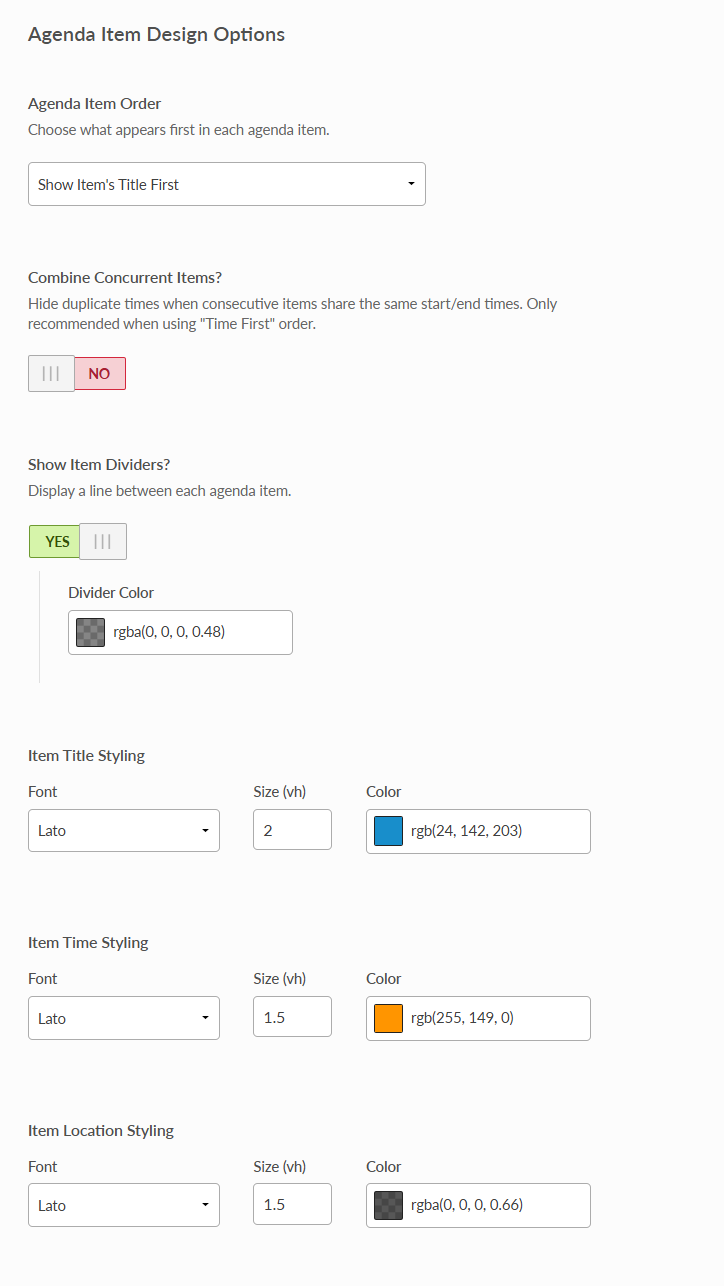
- Agenda Item Order:
- Show Item’s Title First: If the layout you pick has a vertical Miscellaneous Bar (Leaderboard) that takes up the majority of the height of the screen, then we recommend this option.
- Show Item’s Start/Stop Times first: If the Miscellaneous Bar (Leaderboard) is horizontal taking up the width of the screen, then we recommend this option.
- Combine Concurrent Items: If this toggle is enabled and two agenda items share the same start and stop times, then we will only show the start/stop times for the first agenda item. The next item will not repeat the start/stop times since they are the same as the item above it.
- Enabling this can help to show more overall items on the screen since the timestamp isn’t repeated for each item—they’re only shown when the start or stop time is different.
- We only recommend combining items when using the “Time First” order and you’re using a vertical Miscellaneous Bar or are displaying the agenda full screen.
- Show Item Dividers: Display a line between each agenda item. If enabled, you can choose the divider color.
- Divider Color: Set the divider color
- Item Title Styling: Set the appearance of the agenda item title.
- Font: Choose the font style for the item title.
- Size: Adjust the title text size.
- Color: Select the color of the title text.
- Item Time Styling – Customize how the agenda item time is displayed.
- Font: Choose the font style for the time
- Size: Adjust the time text size.
- Color: Select the color of the time text.
- Item Location Styling – Set the appearance of the agenda item location text.
- Font: Choose the font style for the location.
- Size: Adjust the location text size.
- Color: Select the color of the location text.
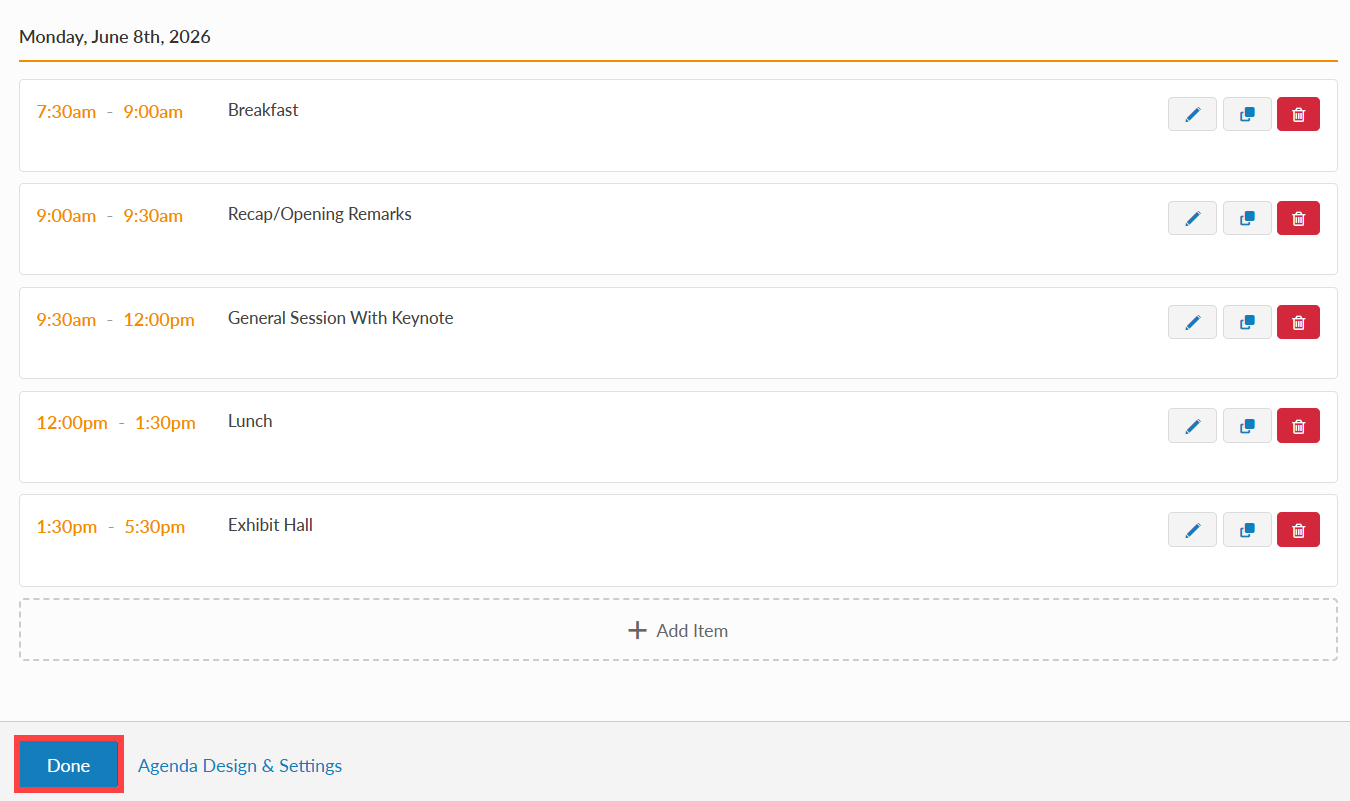
Step 4: After customizing the settings and design of your Event Agenda click the “Save Settings” button to save the changes. You will then be directed to the Manage Agenda Items Page where you can add items to your Event Agenda. Click the “Add Item” button to add an agenda item. There will be sections for each of your event days, as well as the pre-event monitoring window (used for testing).
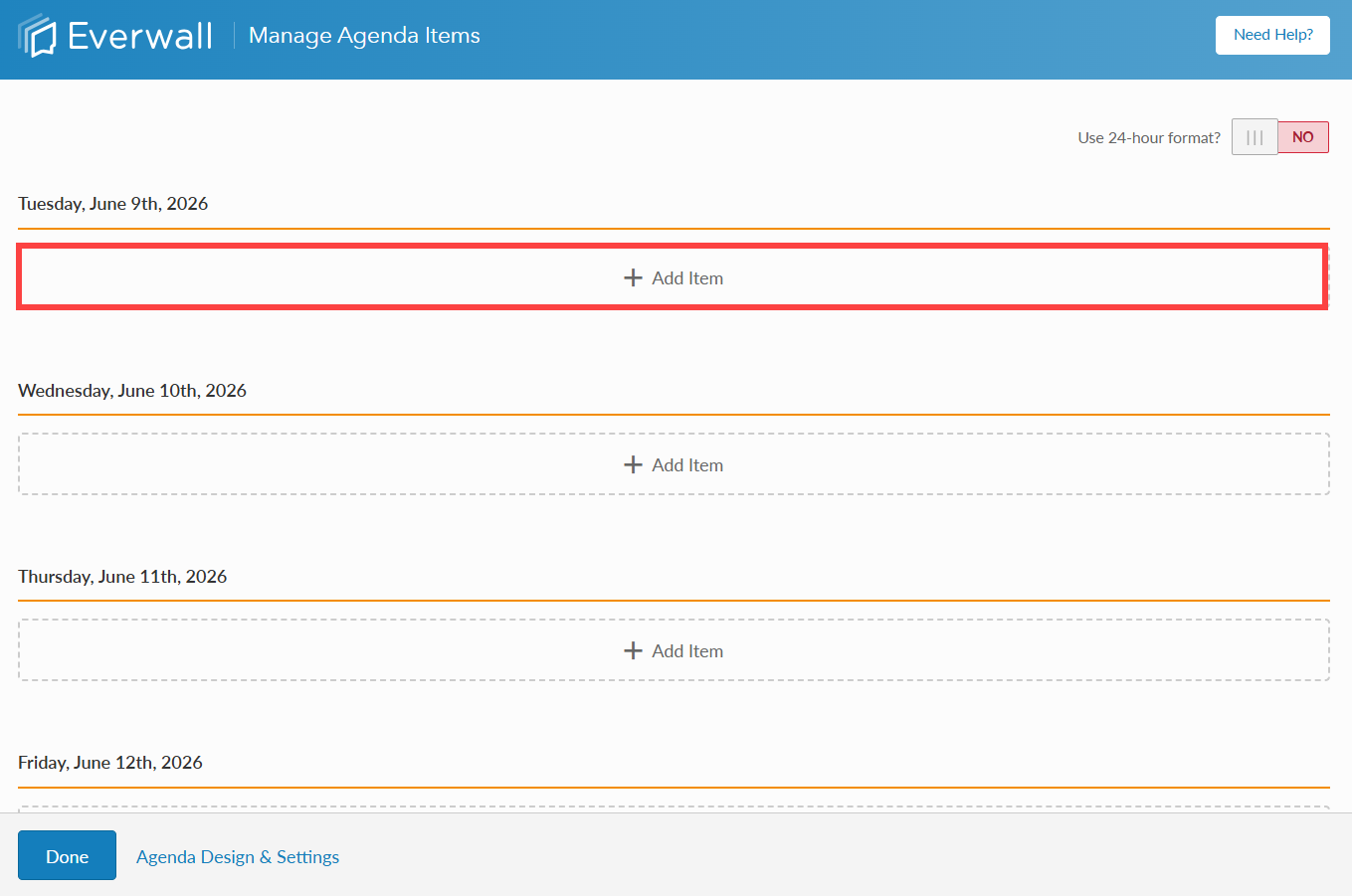
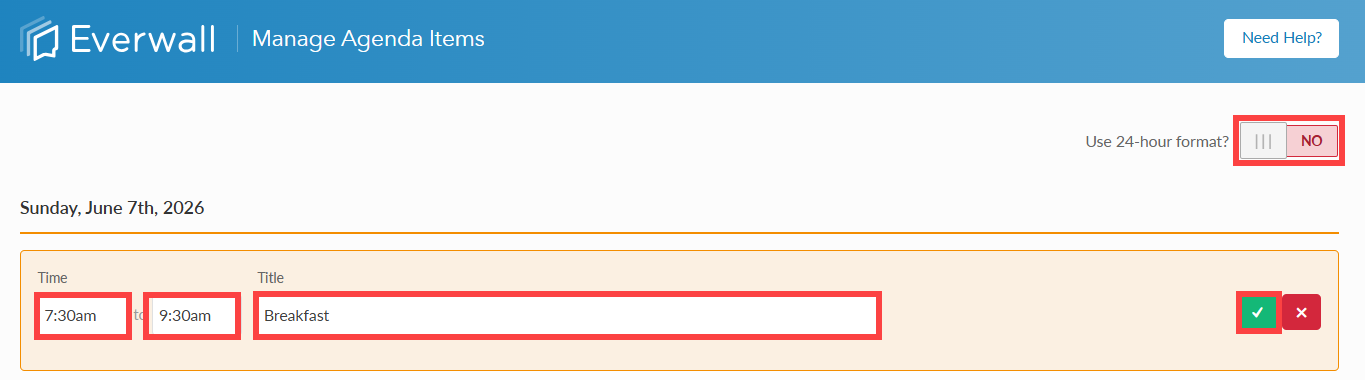
Step 5: The 24-hour format toggle allows you to choose how times are displayed to you based on your personal preference. It will not be shown on the social wall in this format (you can set that in the Agenda Settings page if you need to change that).
For each item you want to add, enter the agenda item’s Start Time and End Time in the drop down that appears for each field, or you can also type in the time. After that add the item’s Title. When finished, click the green checkmark to save the item or the red X to cancel.
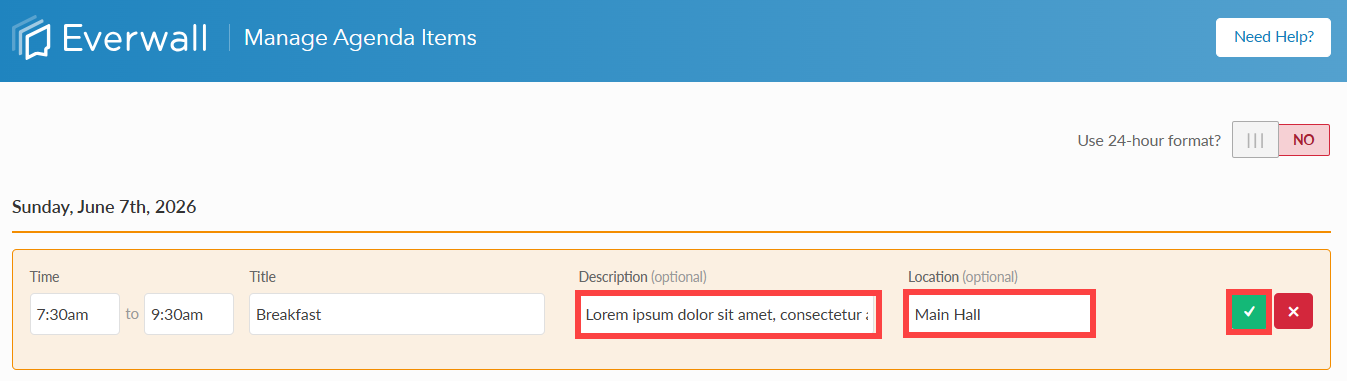
NOTE: If Show Item Description and Show Item Location are enabled under the Agenda Item Visibility Options section on the Agenda Settings page, you can optionally enter a description and location for each agenda item. These items will be displayed on your social wall if they are toggle on on the Agenda Settings page.
Step 6: You can add as many agenda items as you like. After adding your items, click the “Done” button to save them. You can also click the duplicate button on any item to make similar items easily.
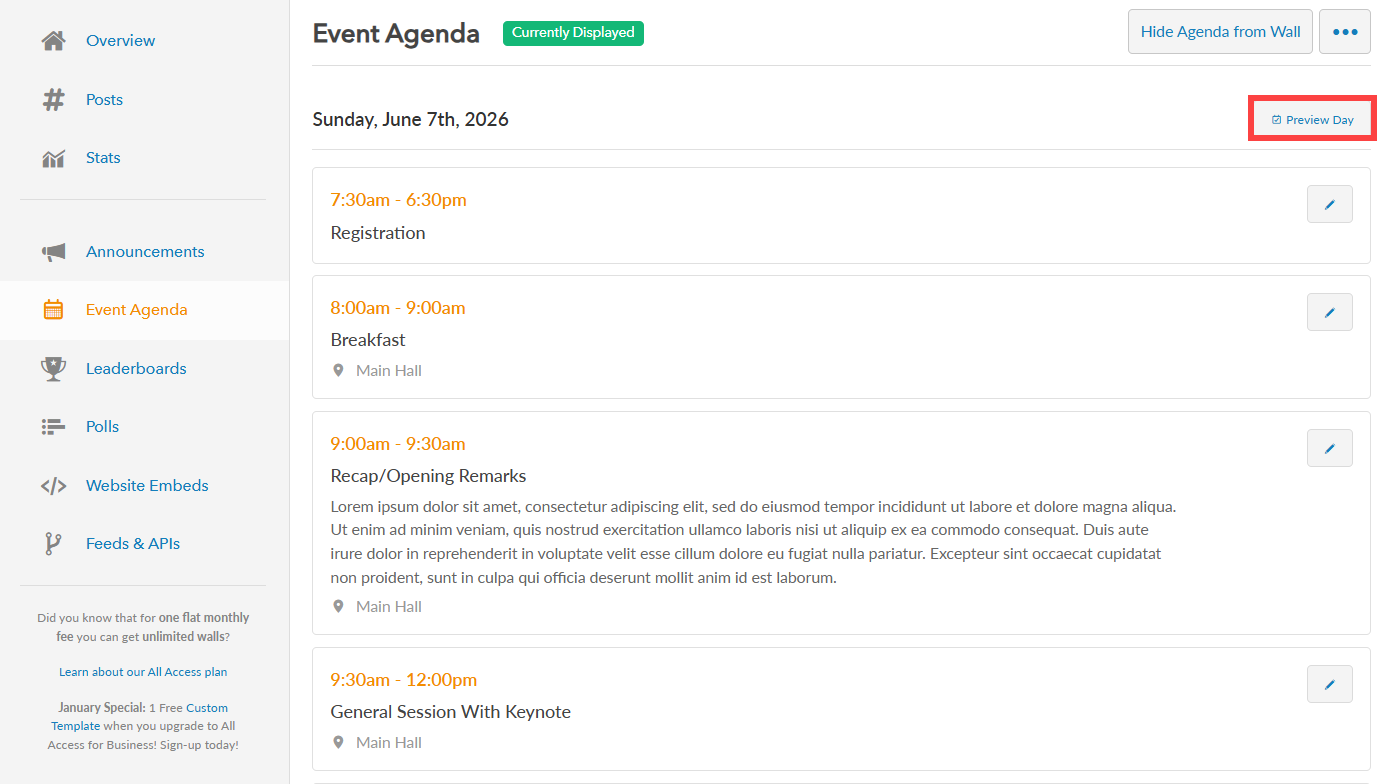
Step 7: If you want to see a preview of what the agenda will look like for a specific day, you can click the “Preview Day” button on the Event Agenda page next to the date. Without clicking that button for a specific day, the agenda would just say that there are no events for the day (unless you’re editing this on one of your actual event days).
When you use that button to preview the agenda, we force the social wall to display the agenda as if it were that specific day, and by default, the time of the very first agenda item for the day. You can change the &agenda_time=07:30 variable in the URL to be other times to see how the agenda changes throughout the day, if you wish. If there is no “am” or “pm” on the timestamp, we’ll assume it’s in 24-hour format. You can use 12-hour formatting if you want, e.g. &agenda_time=02:00pm
Still have questions? Get in touch.