


How to Duplicate an Agenda Item
Duplicating an agenda item lets you quickly create a copy of an existing item, making it easy to reuse details like time, title, and location. This is especially helpful when building agendas with similar sessions, helping you save time while keeping your event schedule consistent and accurate.
How to Duplicate an Agenda Item
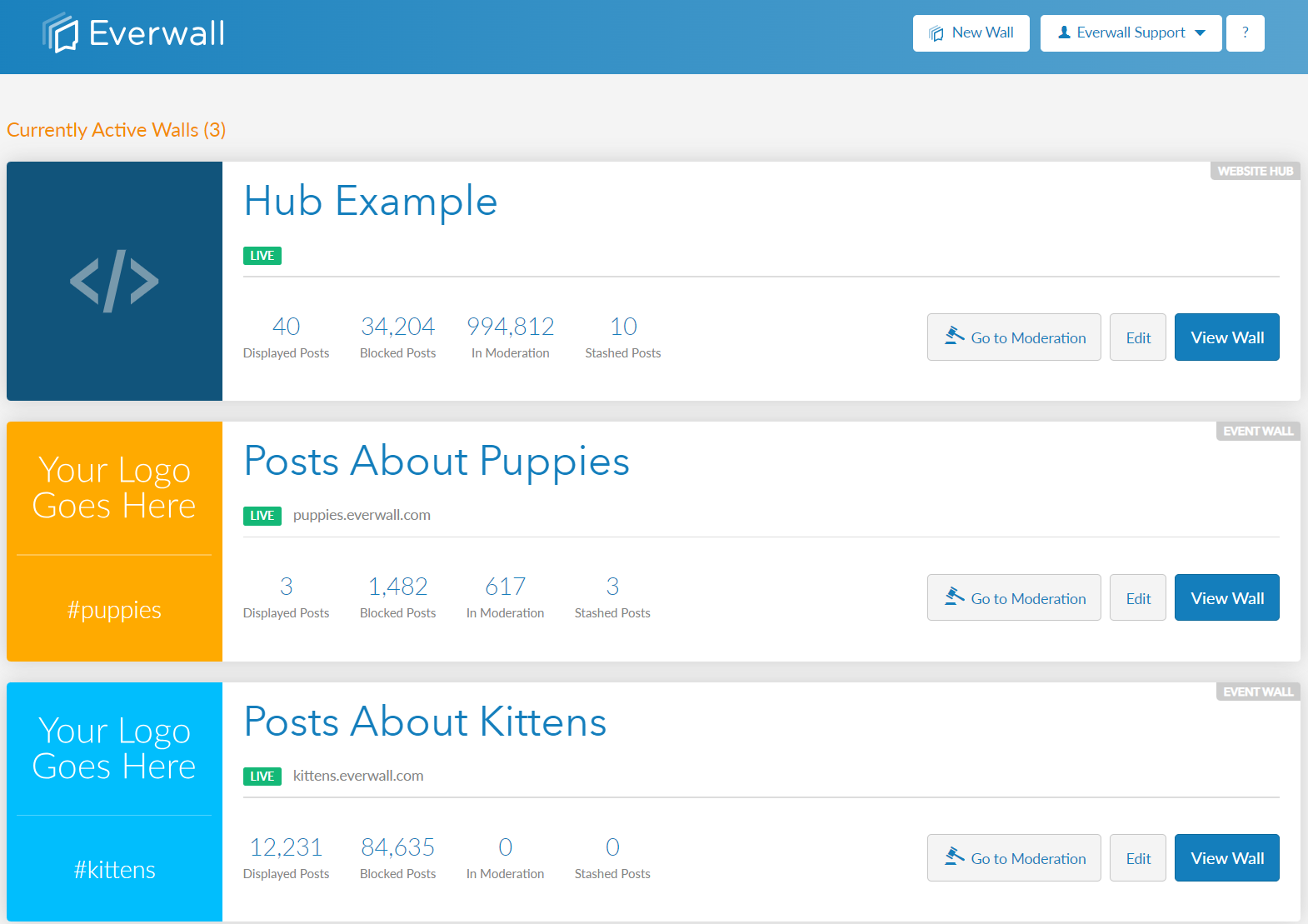
Step 1: Select the wall you wish to duplicate your event agenda item.
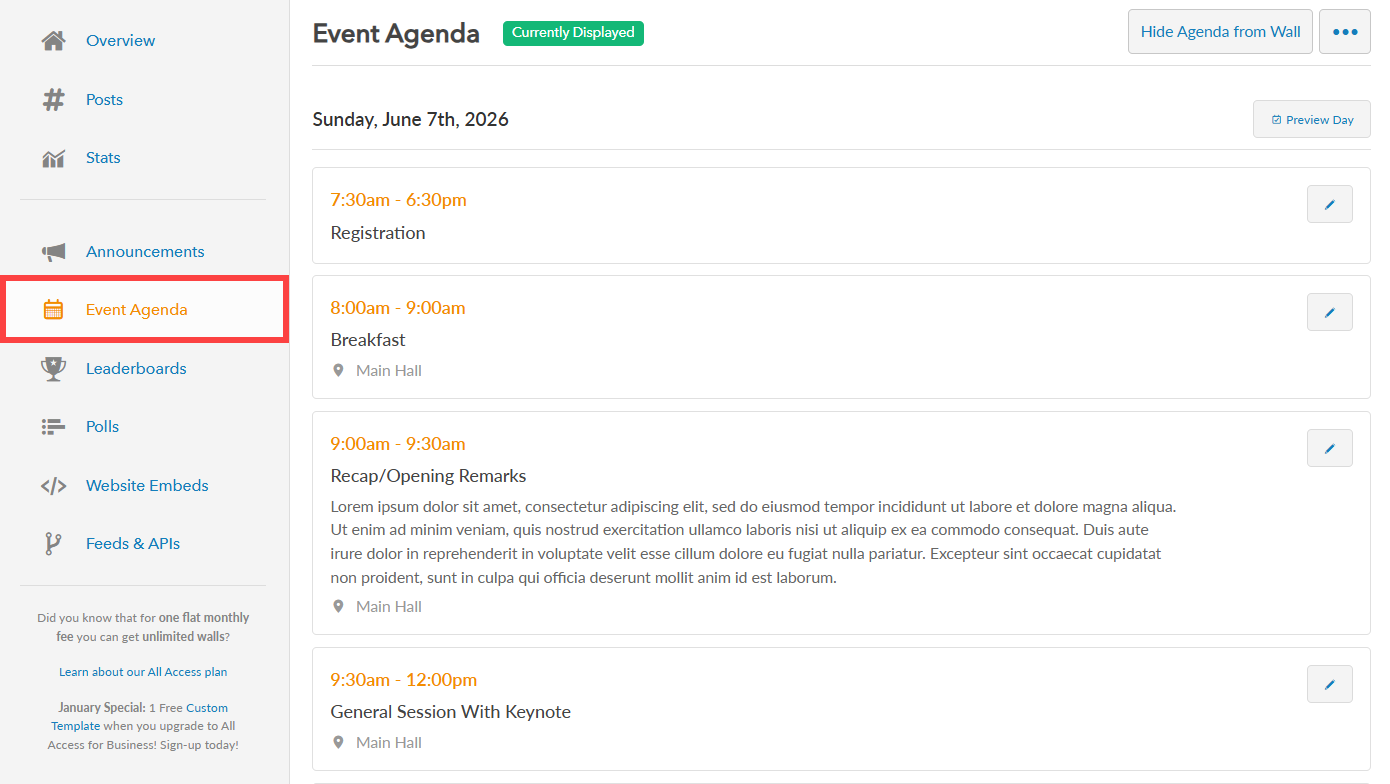
Step 2: In the side menu, click “Event Agenda” to view your existing event agenda and its agenda items.
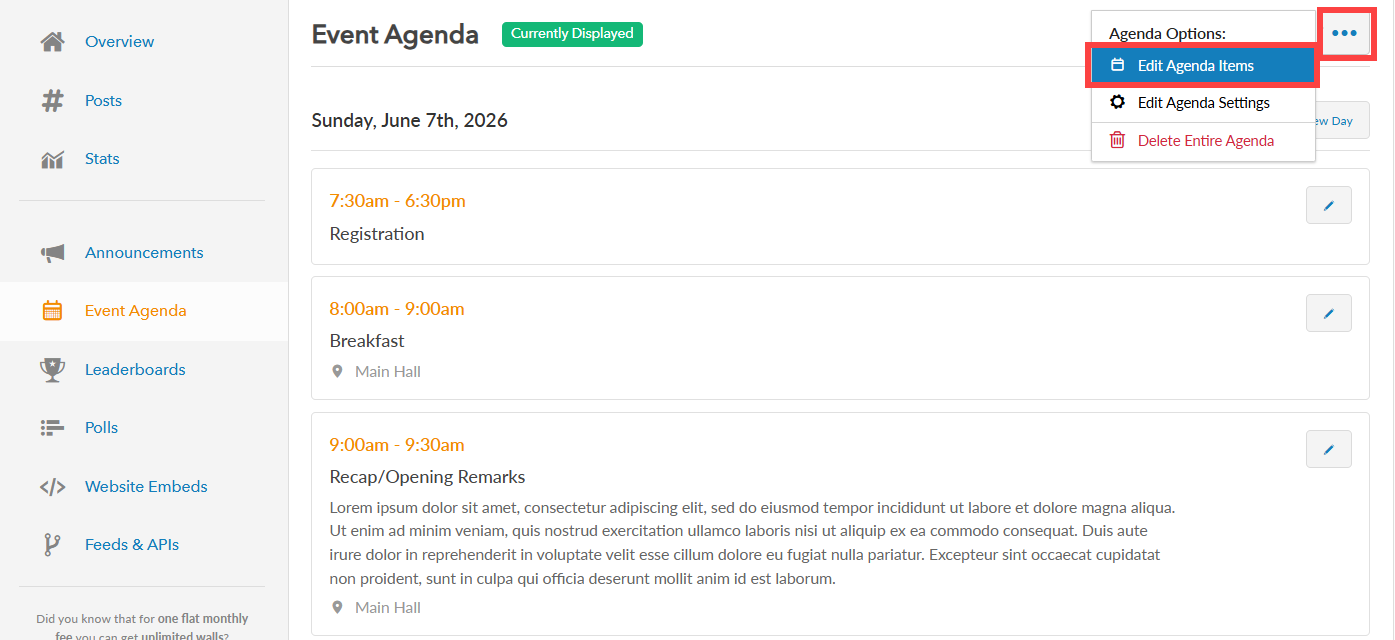
Step 3: Click the more button (represented by three dots) to view more options and select “Edit Agenda Items” option.
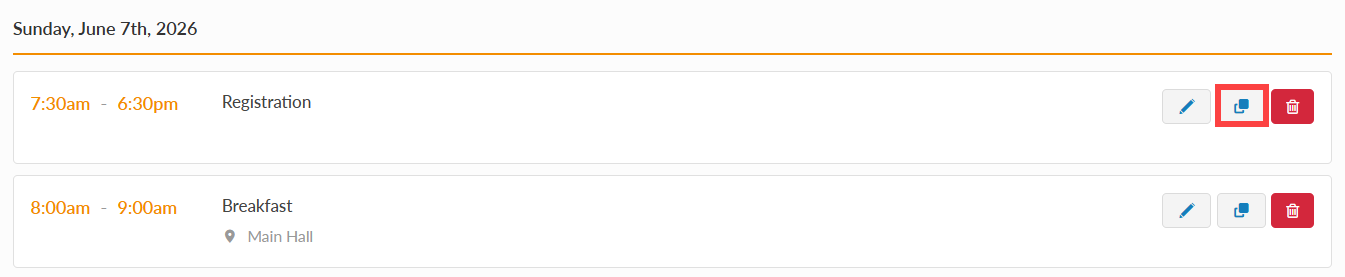
Step 4: You will be directed to the Manage Agenda Items page, where you can view all agenda items and add, edit, duplicate, or delete an agenda item. Select the specific agenda item you wish to duplicate then click the duplicate icon beside it.
Step 5: After clicking the Duplicate icon, a new agenda item will be created with the same time, title, description, and location as the original item. You can then edit the duplicated item as needed and click the green checkmark to save the agenda item. Finally, click the “Done” button to save your changes.

Still have questions? Get in touch.